LeastPrivilegedEntra PowerShell Module
This project aims to provide a simple report of the users utilizing their roles and which are not being used and can be removed
Installation
Install-Module -Name LeastPrivilegedEntra -Scope CurrentUser
Available Commands
| Command | Description |
|---|---|
Invoke-LPEScan | Runs the full workflow end to end: connect, enumerate privileged users, pull their audit log activity, analyze, and optionally write the result to JSON. This is the one most people want. |
Get-LPEPrivilegedUser | Enumerates every user holding an Entra ID directory role, active or PIM-eligible, direct or via a role-assignable group. |
Get-LPELogActivityData | Queries the AuditLogs table in a Log Analytics workspace for the relevant activity a set of users performed. |
Get-LPEPermissionAnalysis | Couples privileged users with their logged activity to determine, per role, whether it's actually being used. |
Get-LPEActivityData | Reference lookup: given an audit log Category/Activity, returns the least-privileged Entra RBAC role and Microsoft Graph permission that covers it. |
Every command ships with full comment-based help - run Get-Help <command> -Full for parameters and examples.
QuickStart
Create an App Registration
Create a client secret for later.
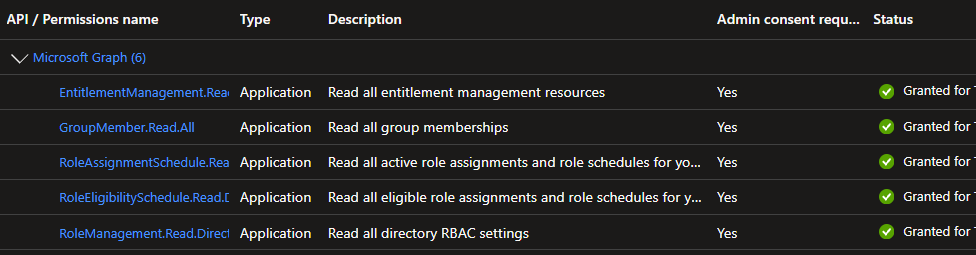
Microsoft Graph permissions (Application)
EntitlementManagement.Read.AllGroupMember.Read.AllRoleAssignmentSchedule.Read.DirectoryRoleEligibilitySchedule.Read.DirectoryRoleManagement.Read.DirectoryUser.ReadBasic.All
Create a Diagnostic Setting in Entra ID
- Create a Log Analytics workspace in a subscription where you have Contributor access.
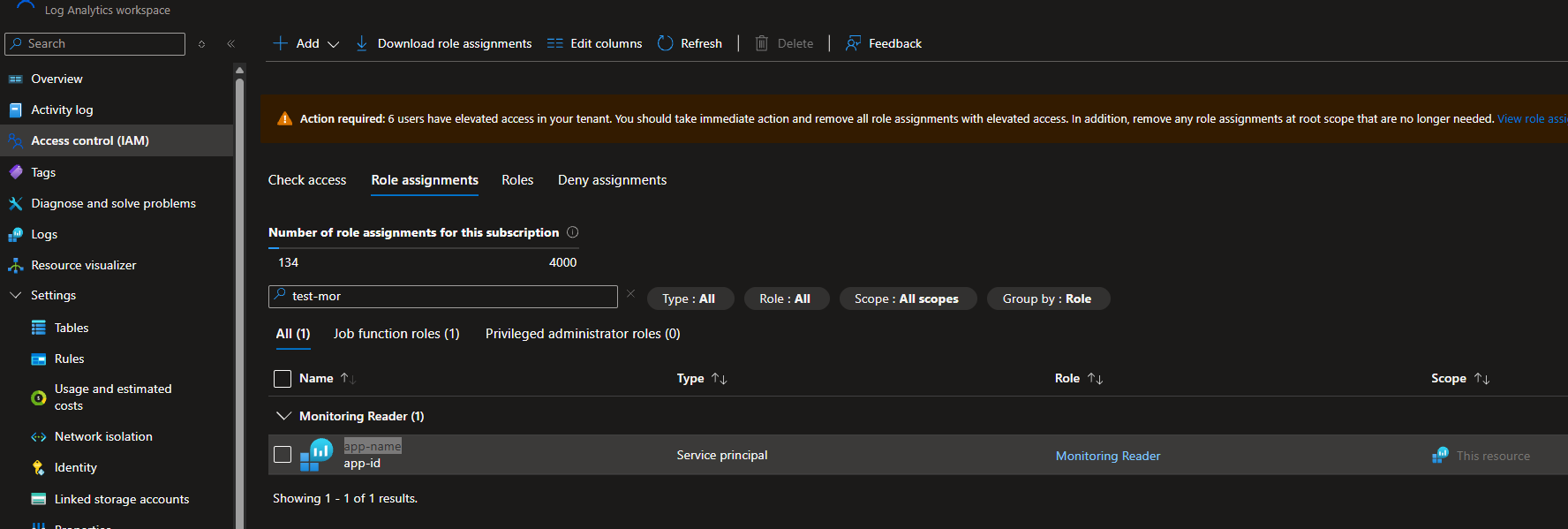
- On that Log Analytics workspace, add the RBAC role Monitoring Reader to your application.
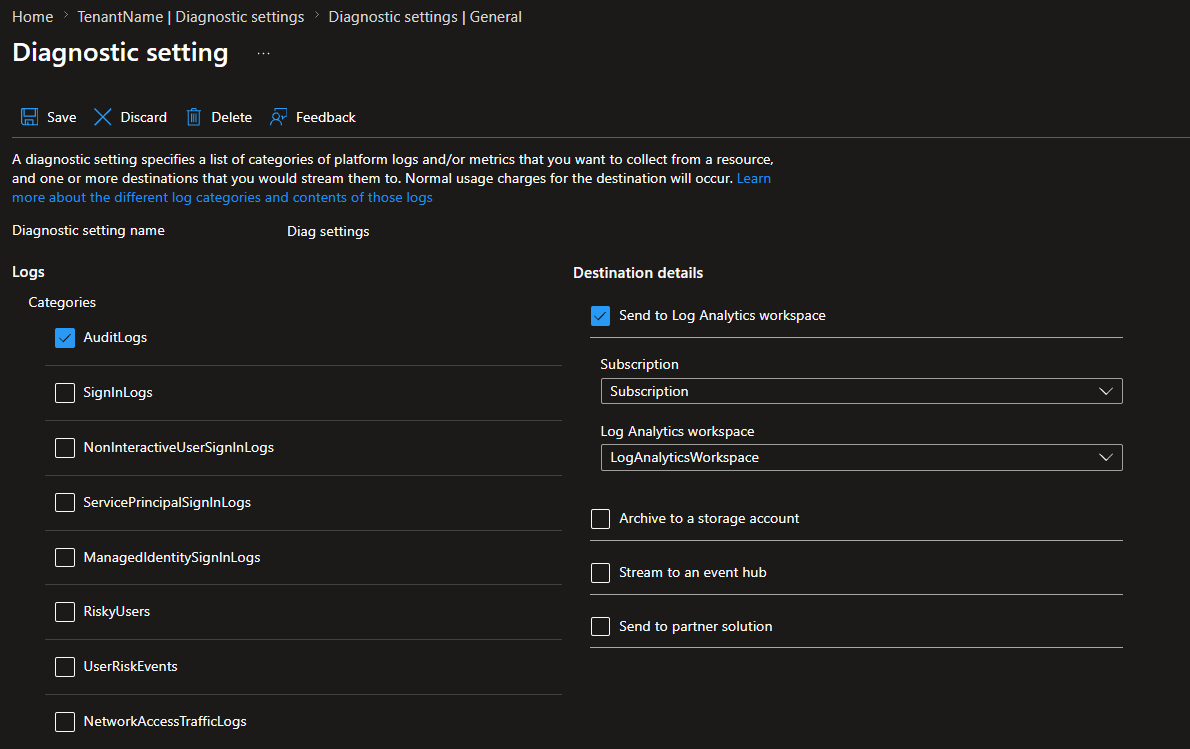
Go to Entra -> Diagnostic Settings -> Create, check AuditLogs, and send it to the Log Analytics workspace you created above.
NOTE: It can take up to 48 hours before logs start populating. Normally it takes between 15 minutes and 2 hours, but delays can happen.
Run the module
Import-Module LeastPrivilegedEntra

$tenantId = "tenantId"
$appId = "appId"
$secret = "secret" | ConvertTo-SecureString -AsPlainText -Force
$workspaceId = "workspaceId"

Invoke-LPEScan -TenantId $tenantId -ClientId $appId -ClientSecret $secret -WorkspaceId $workspaceId -OutFile ".\PrivilegedUsersAnalysis.json"
NOTE: How you authenticate is up to you as long as you authenticate with the EntraAuth module below is with certificate instead
# Certificate:

# Connect-EntraService -ClientID $clientID -TenantID $tenantID -CertificatePath C:\secrets\certs\mde.pfx -CertificatePassword (Read-Host -AsSecureString) -Service Graph, LogAnalytics

# Connect-EntraService -ClientID $clientID -TenantID $tenantID -Certificate $cert -Service Graph, LogAnalytics

Invoke-LPEScan -SkipConnect -WorkspaceId $workspaceId -OutFile ".\PrivilegedUsersAnalysis.json"
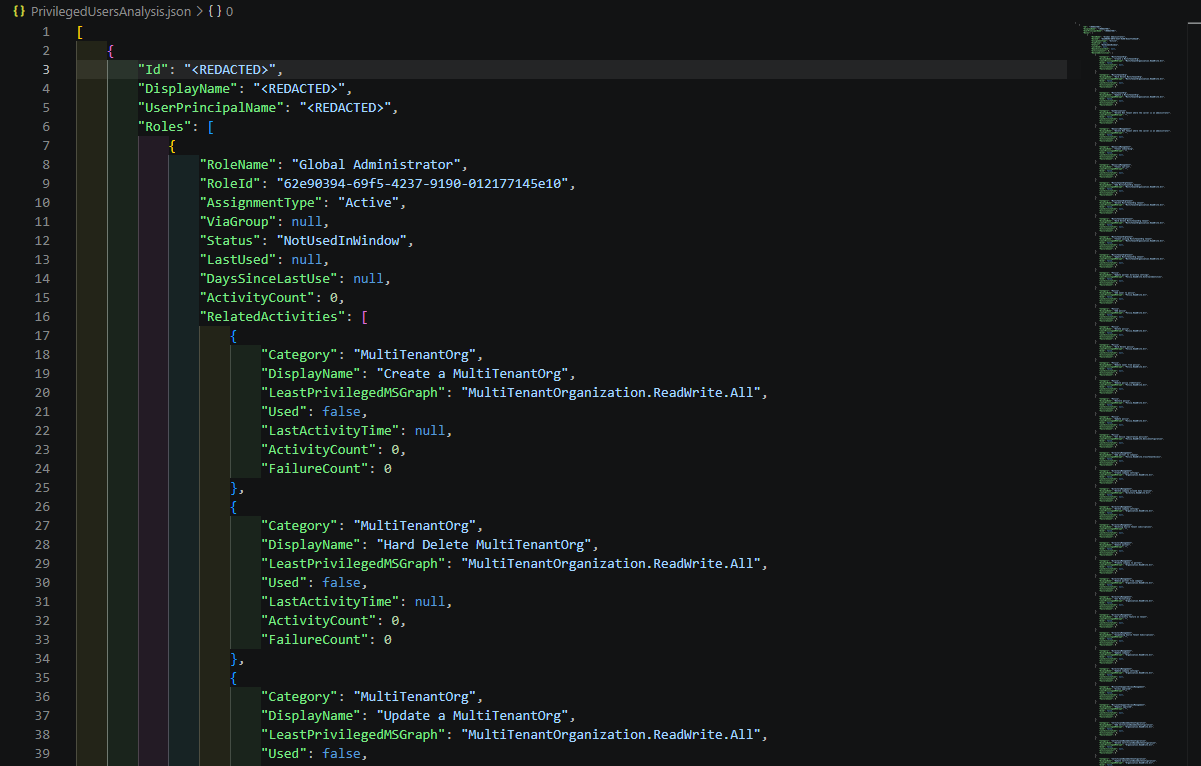
Invoke-LPEScan connects, enumerates privileged users, pulls their audit log activity, runs the analysis, and both returns the result objects and (via -OutFile) writes them to a JSON file. It also shows live progress while it runs. See Get-Help Invoke-LPEScan -Full for all parameters, including -Days, -IncludeFailures, and -SkipConnect (to reuse an existing Connect-EntraService session).
After the scan is run, PrivilegedUsersAnalysis.json will contain all the data related to which users hold which roles, when they last used them, and whether they need to keep the role based on their observed activity.