Least privileged MSGraph is now a Maester Pack

A step by step guide for getting up and running with the Least Privileged MSGraph Maester Pack - install it, point it at your Log Analytics workspace and get one result per app in your Maester report.
Intro
Maester 3.0 brought something I have been waiting for: Maester Packs. A pack is a GitHub repository with native Maester tests that anyone can install with one command, and its results show up in the same report as Maester's own checks.
So I took the Maester tests that shipped with my LeastPrivilegedMSGraph module and turned them into a pack. Instead of copying a folder of Pester files around and keeping them up to date by hand, you now run Install-MtPack and you are done.
What you get:
- One result per app - every service principal with Microsoft Graph permissions gets its own Pass / Fail / Investigate row, so you can exclude or accept a single app without touching the rest.
- Four checks - excess permissions, activity that could not be matched to a permission, Graph API throttling, and apps that hold permissions but never use them.
- The full LeastPrivilegedMSGraph report inside the Maester report - the same interactive report you know from
Export-LPMSPermissionAnalysisReport, one click away under Reports.
The pack lives here: Mynster9361/maester-pack-lpms
As always if you have feedback or run into something weird, reach out - I am on discord or linkedin and my messages are open.
LinkedIn: Morten Mynster
Discord: Morten (Mynster)
Prerequisites
Before we install anything, you need the same foundation as for the module itself:
- Entra ID P1 or P2 - needed for the Microsoft Graph activity logs.
- A Log Analytics workspace with the MicrosoftGraphActivityLogs diagnostic setting turned on.
- PowerShell 7.4 or later - Maester 3.0 does not run on Windows PowerShell 5.1.
If you have not done 1 and 2 yet, follow the first part of my step by step guide for least privileged msgraph - it walks through the license check, creating the workspace and enabling the diagnostic setting with screenshots. Come back here once you can query MicrosoftGraphActivityLogs in your workspace.
NOTE: it can take up to 48 hours before logs start showing up in the workspace, so if you just enabled the diagnostic setting this is a good time to go get a coffee (or a few).
The identity that runs Maester needs:
- Monitoring Reader (or Log Analytics Reader) on the Log Analytics workspace
- Application.Read.All in Microsoft Graph - if you already run Maester you have this
Step 1: Install Maester
Packs need Maester 3.0 or later. Packs are in preview right now, so install the prerelease:
Install-Module Maester -AllowPrerelease -Scope CurrentUser -Force
Then create a folder for your Maester configuration (skip this if you already have one):
md maester-tests
cd maester-tests
Install-MaesterTests
In Maester 3.0 Install-MaesterTests no longer copies any tests - the built-in tests ship inside the module. It just gives you a custom folder and a starter maester-config.json. Remember that folder, the pack gets recorded in it.
Step 2: Install the pack
From your maester-tests folder:
Install-MtPack Mynster9361/maester-pack-lpms
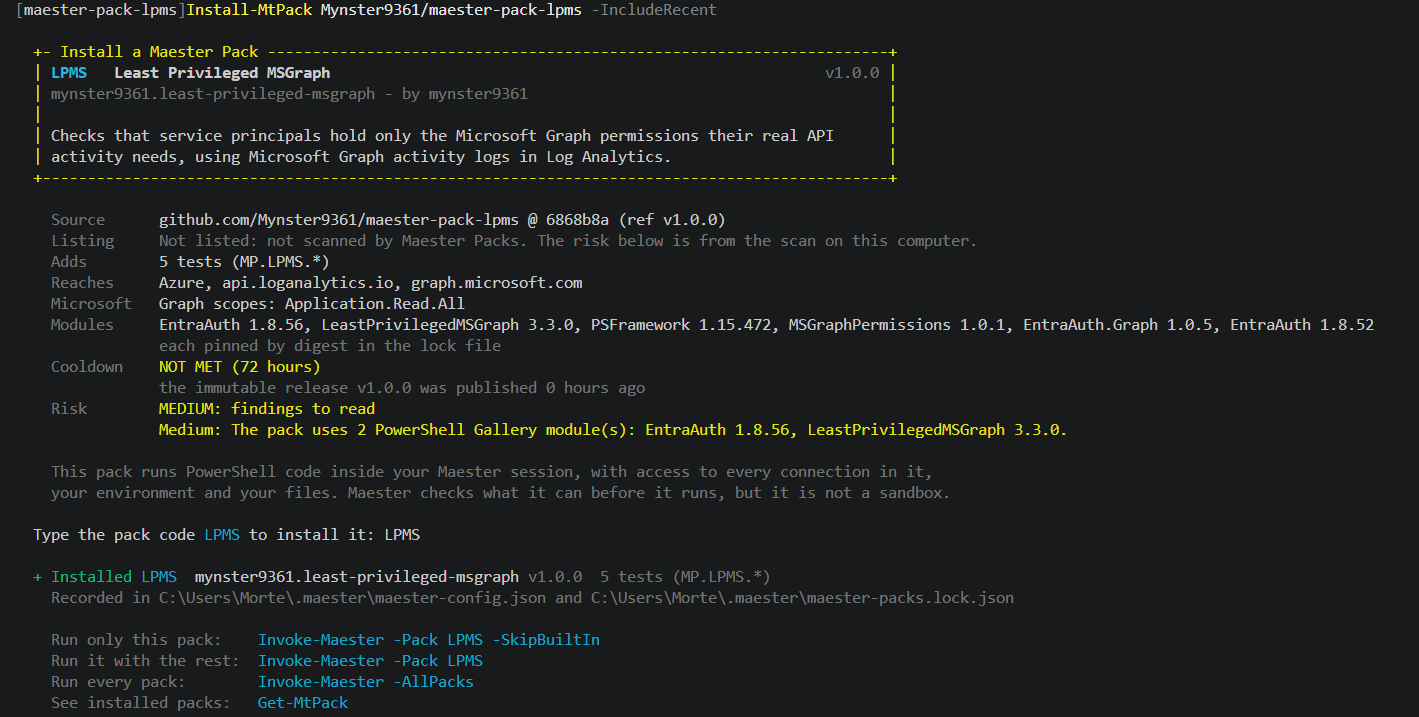
Before anything is saved, Maester downloads the pack and reads every file without running any of it, then shows you what the pack reaches and asks you to approve it:
- Reaches - Azure (for Log Analytics),
api.loganalytics.ioandgraph.microsoft.com - Microsoft - the Graph scope it needs,
Application.Read.All - Modules -
LeastPrivilegedMSGraphand the modules it depends on (EntraAuth,EntraAuth.Graph,MSGraphPermissions,PSFramework), each pinned to an exact version - Risk - Medium, because the pack uses a PowerShell Gallery module. That is expected - the module is what does the actual work.
Type Y and the pack is recorded in two files next to your maester-config.json: the config gets a Packs entry, and maester-packs.lock.json pins the exact files and module versions you just approved. Commit both if your Maester folder lives in git.
The modules are saved into Maester's own pack store, not your module folder, so the pack can never mess with the modules you have installed yourself (and the other way around).
NOTE: a new release can only be installed once it is 72 hours old - that is Maester's cooldown, so a bad release has time to be caught before it lands on your machine. If you are trying the pack right after a release, add
-IncludeRecentand type the pack codeLPMSwhen asked.
NOTE: if the prompt says High and lists some modules as "yours, externally managed", Maester found your own installs of those modules at the exact pinned version and used those instead of saving its own copy. Nothing wrong with it, but if you want Maester to save every module itself (and get the Medium rating), install once like this:
Step 3: Tell the pack where your logs are
The only required setting is your workspace ID. You find it on the Overview page of the Log Analytics workspace (the Workspace ID, not the resource ID).
Add it to GlobalSettings in your maester-config.json:
{
  "GlobalSettings": {
    "LPMSLogAnalyticsWorkspaceId": "xxxxxxxx-xxxx-xxxx-xxxx-xxxxxxxxxxxx"
  }
}
There are a few optional settings as well:
| Setting | Default | What it does |
|---|---|---|
LPMSDaysToQuery | 30 | Days of activity to analyse. More days = better coverage, slower run and more memory. |
LPMSMaxActivityEntries | 100000 | Max Log Analytics rows per app. Only raise it for very chatty apps. |
LPMSThrottleLimit | 10 | Parallel workers reading activity. Lower it if Log Analytics starts throttling you. |
LPMSOnlyPrivilegXAndOver | 1 | Only check permissions at this privilege level or higher (1 to 5), based on Microsoft's own privilege levels. |
LPMSCacheMinutes | 60 | How long the analysis is reused in the same PowerShell session. 0 always refreshes. |
Every setting can also come from an environment variable (LPMS_LOG_ANALYTICS_WORKSPACE_ID, LPMS_DAYS_TO_QUERY and so on), which comes in handy in pipelines.
NOTE: if you have a big tenant start with
LPMSOnlyPrivilegXAndOverset to3or4. You get the apps with the scary permissions first instead of hundreds of rows forUser.Read.
Step 4: Connect
Two connections: Microsoft Graph for Maester itself, and Azure with the Log Analytics scope for the pack.
Connect-Maester
Connect-AzAccount -AuthScope 'https://api.loganalytics.io'
Why the extra Connect-AzAccount? The module gets its Log Analytics token through Connect-EntraService -AsAzAccount (if you read my EntraAuth post you know the trick), and Azure caches tokens per resource. So the Log Analytics scope has to be signed in at least once per session. If your Conditional Access requires MFA for that resource you get prompted once, after that it is silent.
Without an Azure sign-in the pack's tests are simply skipped with ServiceNotConnected - no errors, they just wait for you.
Step 5: Run it
Installing a pack does not add it to every run - you name it with -Pack:
# Only the pack
Invoke-Maester -Pack LPMS -SkipBuiltIn

# Maester's own tests and the pack
Invoke-Maester -Pack LPMS
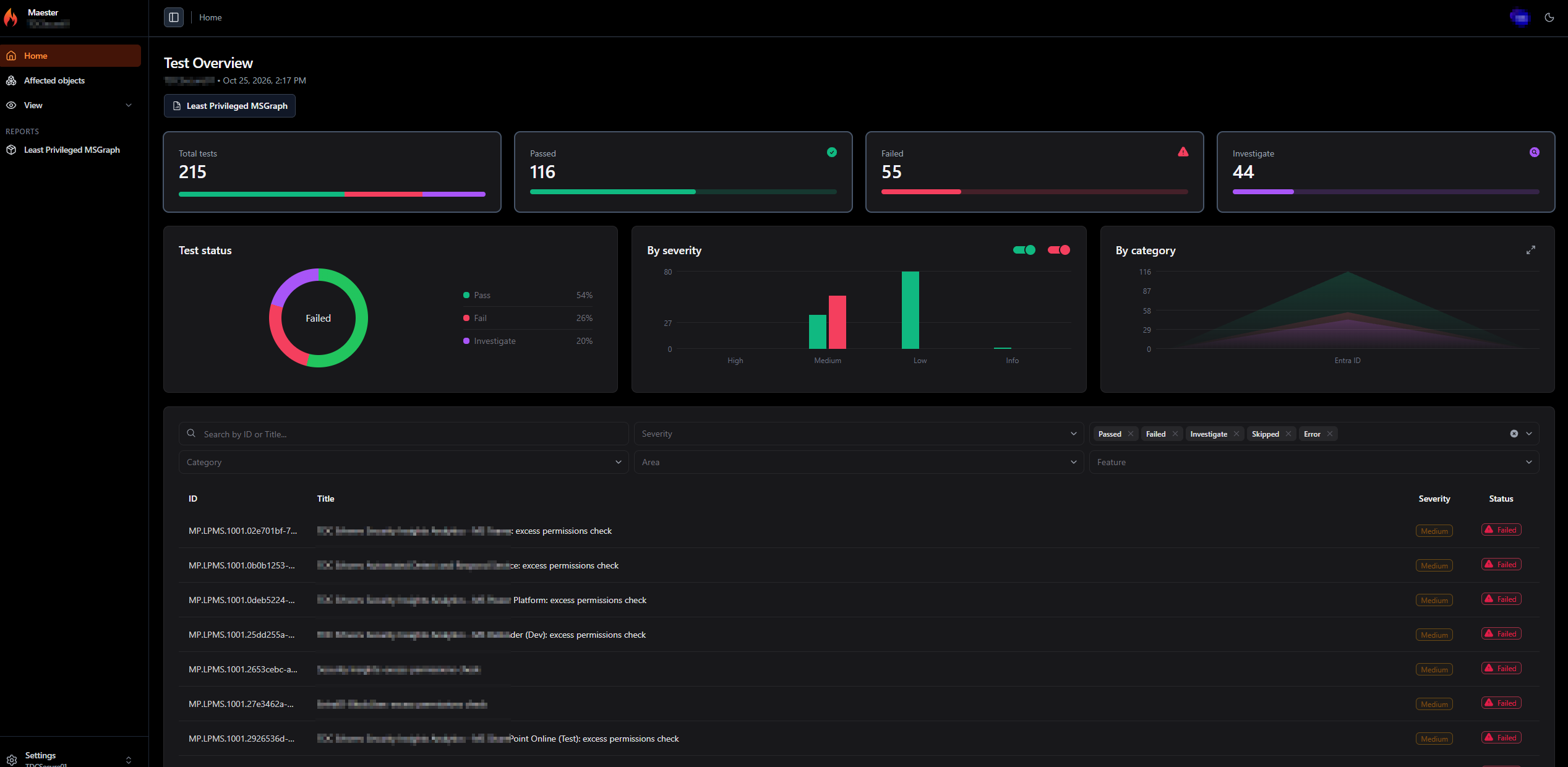
The pack runs the LeastPrivilegedMSGraph analysis once and all of its tests share the result, so it does not hammer your workspace five times.
Here is what you get:
| Test | What it checks |
|---|---|
| MP.LPMS.1001 | The app holds only the permissions its Graph activity actually needed. One row per app with permissions. |
| MP.LPMS.1002 | Every Graph call the app made could be matched to a permission. If not, the analysis for that app is incomplete. |
| MP.LPMS.1003 | The app is not being throttled at Warning (10%+) or Critical (25%+) level. |
| MP.LPMS.1004 | The app holds permissions and made at least one call in the analysis window. |
| MP.LPMS.1005 | Not a check - it adds the full report to your Maester report, with a summary of the findings. |
Each row ID ends with the app's object ID, for example MP.LPMS.1001.11111111-2222-3333-4444-555555555555. A failing 1001 row lists the excess permissions and the optimal permissions for that app, so you can see straight away what to remove and what to keep.
If you want the quick wins first, start with MP.LPMS.1004. Just like the "No activity" filter in the report, most of those are apps holding a delegated User.Read that nobody uses - you should be able to clean up most of them without too much investigation.
Step 6: Open the full report
Open Least Privileged MSGraph under Reports in the left menu of the Maester report, or use the button on the MP.LPMS.1005 result.
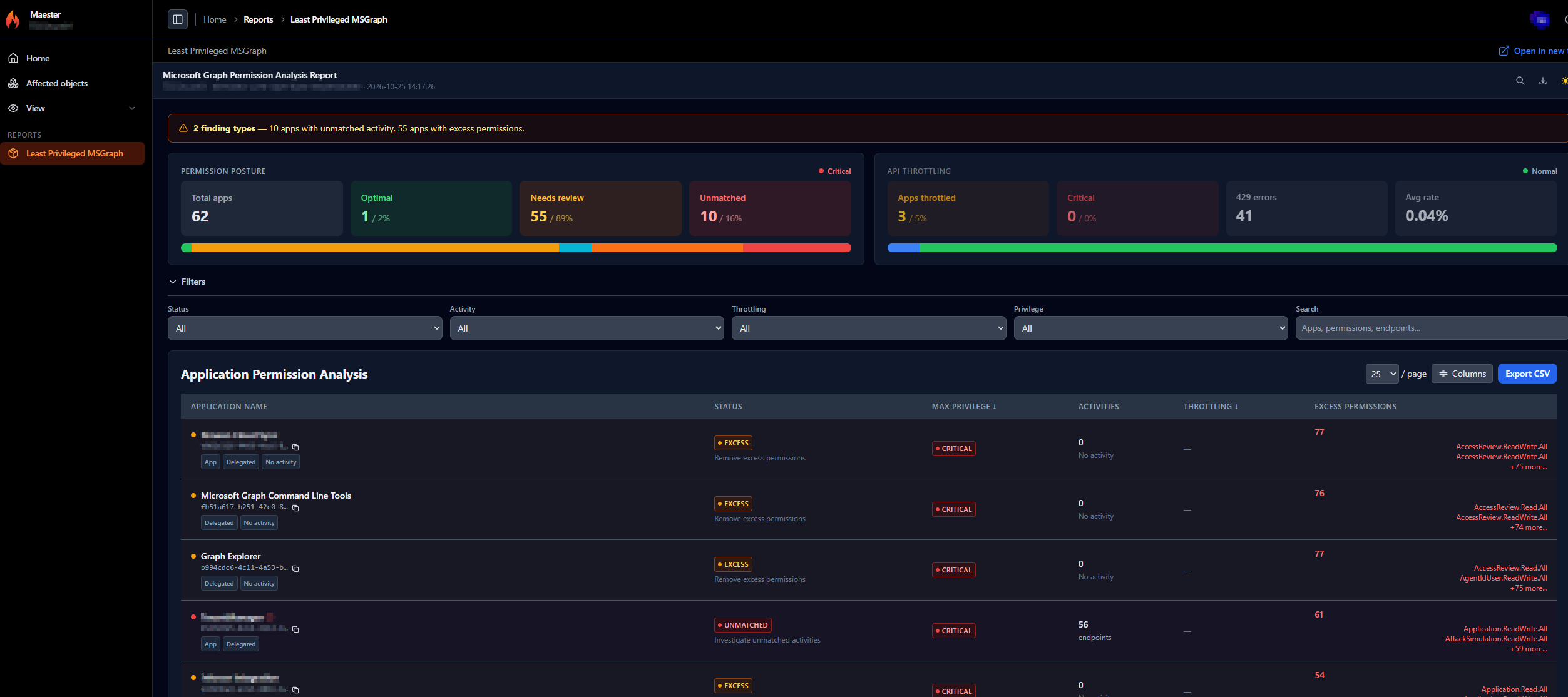
It is the same interactive report as Export-LPMSPermissionAnalysisReport - search, filters, the per-app detail with current vs. optimal permissions, the endpoints each app called, and CSV export. If you have not used the report before, the How to read the report section of my previous post walks through it.
NOTE: the report contains the names and permissions of your applications, so share your Maester report the same way you would share the analysis itself. If you run
Invoke-Maester -RedactUserIdentitythe report is left out.
Step 7: Tune it to your tenant
Not every finding needs action. A seasonal app that only runs in December will show up in 1004 every other month. Instead of ignoring the row forever, accept it in TestSettings - for one app, or the whole check:
{
  "TestSettings": [
    { "Id": "MP.LPMS.1004.11111111-2222-3333-4444-555555555555", "Enabled": false, "Reason": "Year-end job, reviewed" },
    { "Id": "MP.LPMS.1003", "Severity": "Medium" }
  ]
}
The default severities are Medium for excess permissions and no activity, Low for unmatched activity and throttling (those mostly need a human to look, they are not a misconfiguration on their own), and Info for the report.
Step 8: Automate it with GitHub Actions
The real value comes when this runs on a schedule. Following my own advice from the EntraAuth post, here is a workflow with federated credentials - no secret to rotate or leak.
- Create an app registration with a federated credential for your repository and branch (the EntraAuth post has the steps).
- Give it Application.Read.All (application permission, admin consent) and Log Analytics Reader on the workspace.
- Commit your
maester-config.jsonandmaester-packs.lock.jsonto the repo. - Add the repository secrets
AZURE_TENANT_ID,AZURE_CLIENT_IDandLPMS_WORKSPACE_ID.
name: Maester - Least Privileged MSGraph

on:
    schedule:
        - cron: "0 6 * * 1" # Every Monday at 06:00
    workflow_dispatch:

jobs:
    maester:
        runs-on: ubuntu-latest
        permissions:
            id-token: write # Required for the federated credential
            contents: read
        steps:
            - uses: actions/checkout@v4

            - name: Sign in to Azure
              uses: azure/login@v2
              with:
                  client-id: ${{ secrets.AZURE_CLIENT_ID }}
                  tenant-id: ${{ secrets.AZURE_TENANT_ID }}
                  allow-no-subscriptions: true
                  enable-AzPSSession: true

            - name: Run the pack
              shell: pwsh
              env:
                  LPMS_LOG_ANALYTICS_WORKSPACE_ID: ${{ secrets.LPMS_WORKSPACE_ID }}
              run: |
                  Install-Module Maester -AllowPrerelease -Scope CurrentUser -Force
                  Restore-MtPack
                  Invoke-Maester -Pack LPMS -SkipBuiltIn -SkipGraphConnect -NonInteractive -OutputFolder ./test-results

            - uses: actions/upload-artifact@v4
              if: always()
              with:
                  name: maester-lpms
                  path: test-results
Restore-MtPack installs exactly what your lock file records - same commit, same module versions, no prompts. The lock file is the approval, so what runs in the pipeline is what you reviewed when you committed it.
-SkipGraphConnect works here because the pack does all of its Graph calls through the Azure session. If you want Maester's own tests in the same run, connect Microsoft Graph as well and drop -SkipBuiltIn (and grant the app Maester's own permissions too).
Updating the pack
New versions do not land on your machine by themselves:
Update-MtPack
It shows what changed since you approved the pack, and asks again if the pack suddenly reaches more than it did before (a new service, a new Graph scope, a new module). Commit the updated lock file and your pipeline follows.