Device Code Authentication to Microsoft Graph API

Demonstrating Device Code Authentication to Microsoft Graph
In this post, I'll demonstrate how to authenticate to the Microsoft Graph API using Client ID and your own user. The device code method is suitable for client-to-server communication where a interactive user is used to authenticate the application.
First off we need to create the app registration in Azure/Entra
Go to App Registrations page and click create "New registration" 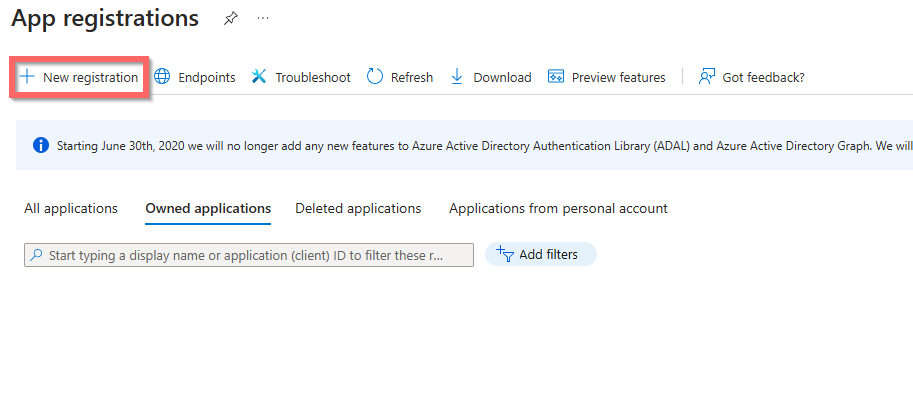
Give it a new and click "Register" 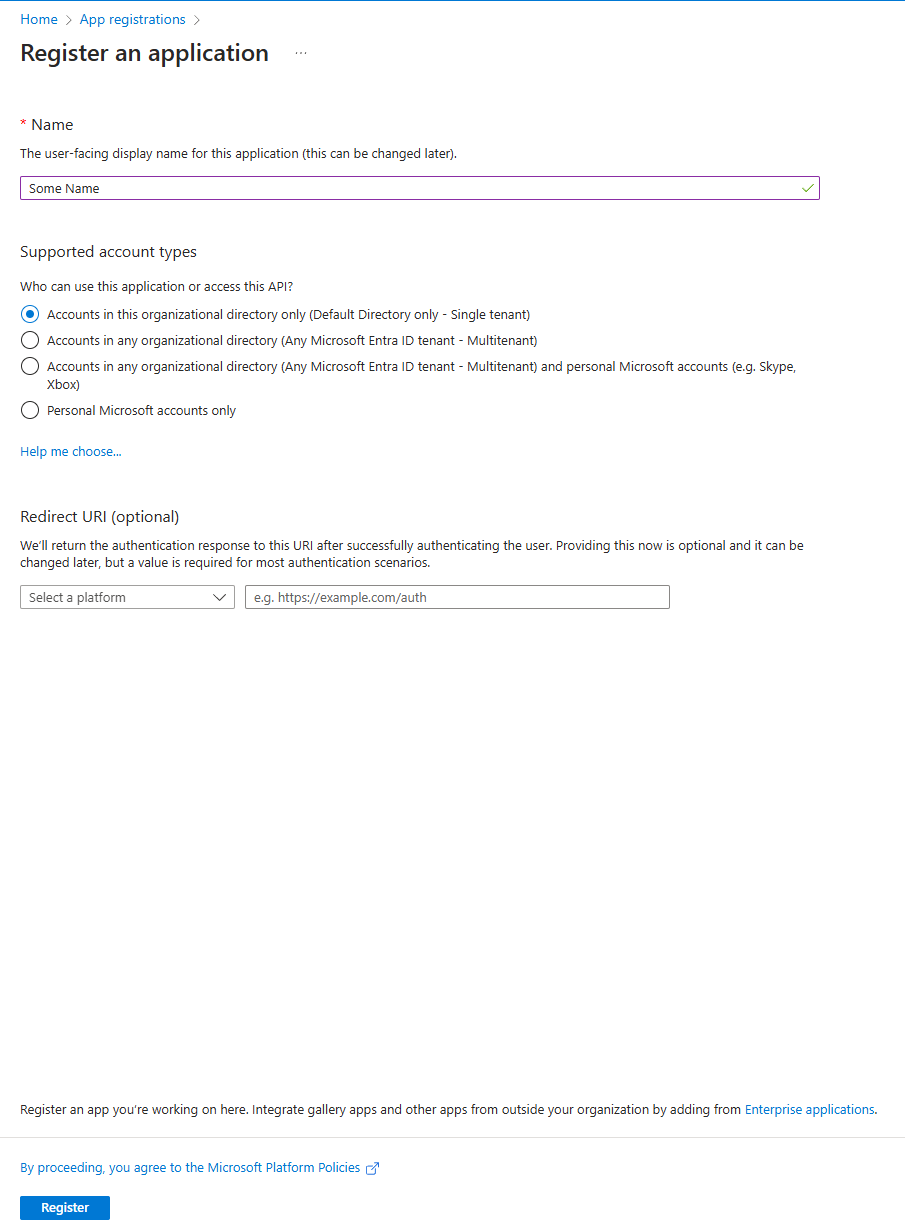
On the front page of the new app also called "Overview" we need to get the "Directory (tenant) ID" and "Application (client) ID" 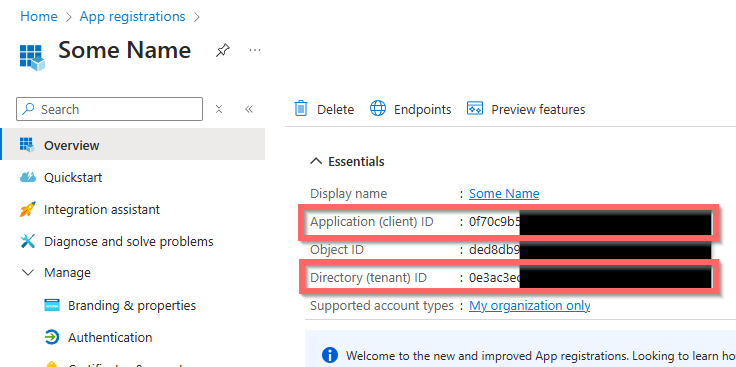
Go to the "Authentication" page and Change the "Allow public client flows" (under Advanced settings) and switch the No to a Yes 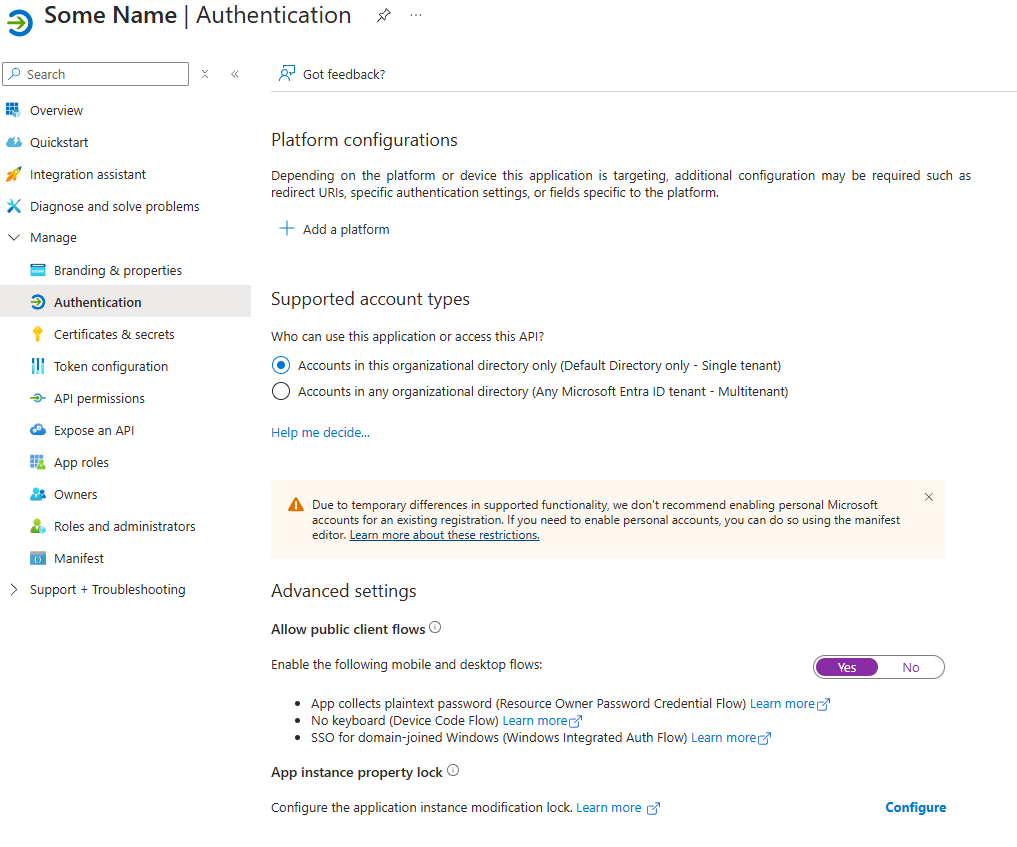
Now lets take what we just created and ask for a token
First off we need to define or variables for authentication take the tenant id, client id we made above in our instance it would be
# Tenant ID, Client ID for the MS Graph API
$tenantId = "Your-tenant-id"
$clientId = "Your-client-id"
Next up we need to configure our body for authenticaton. By looking at Microsoft documentation We can see that we need to provide the following information in our body:
| Parameter | Condition | Description |
|---|---|---|
| client_id | Required | Your client id |
| scope | Required | You only need to specify anything if you are not going to hit the default endpoint |
Right now that we have an understanding of what the endpoint expects then we can form our body from that like shown here: And for this one we will need to hit this endpoint "https://login.microsoftonline.com/$tenantId/oauth2/v2.0/devicecode"
# Default Token Body
$deviceCodeBody = @{
    client_id     = $clientId
    scope         = "user.read"
}
$response = Invoke-RestMethod -Uri "https://login.microsoftonline.com/$tenantId/oauth2/v2.0/devicecode" -Method POST -Body $deviceCodeBody
Now this is only part 1 for this authentication flow the above will return the following:
| Parameter | Value |
|---|---|
| user_code | DZGGXGVMS |
| device_code | DAQABIQEAAABVrSpeuWamRam2jAF1XRQEqRMWPvYmVZEDueczEXye3hct6Y9FNvOI1RMwpHdzgqUG7YFug2Cy2MeKDSTHwvN1XXNta6zeZ0PczF_y7lAgI4CuwoEs4FyylYmFmrgmAgySI0nOATyIbe-sZh_Kez7_2YUeqnZMGm60vrwlWN26Bma4dxZR58KGVMpno2Il2LogAA |
| verification_uri | https://microsoft.com/devicelogin |
| expires_in | 900 |
| interval | 5 |
| message | To sign in, use a web browser to open the page https://microsoft.com/devicelogin and enter the code DZGGXGVMS to authenticate. |
Now what needs to happen is you open the url "https://microsoft.com/devicelogin" and enter the code in from the user_code property.
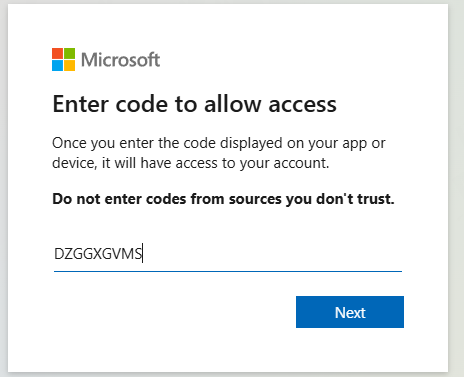
Great now we have authenticated to the endpoint but we still do not have a token that we can use in further api calls. Now that we have authenticated we need to request a token from Azure/Entra by passing the device code we received from the previous call.
$deviceCode = $response.device_code
$deviceAuthCodeBody = @{
    client_id     = $clientId
    scope         = "https://graph.microsoft.com/.default"
    grant_type    = "urn:ietf:params:oauth:grant-type:device_code"
    device_code   = $deviceCode
}
$tokenResponse = Invoke-RestMethod -Uri "https://login.microsoftonline.com/$tenantId/oauth2/v2.0/token" -Method POST -Body $deviceAuthCodeBody
And you are done now you have a token you can use to make api request to microsoft graph if you need assitance as to how, you can see one of my other blog posts.
Complete Script with Synopsis
<#
.SYNOPSIS
    Demonstrates how to authenticate using the device code flow with Microsoft Graph API.

.DESCRIPTION
    This script shows how to authenticate a user interactively using the device code flow.
    It retrieves a device code, prompts the user to authenticate, and then requests an access token.

.NOTES
    MS Docs on how to use Ms Graph API with device code flow:
    https://learn.microsoft.com/en-us/entra/identity-platform/v2-oauth2-device-code

    Remember to enable "Allow public client flows" under Authentication - Advanced settings on the app registration
    otherwise you will get an error.

.PARAMETER tenantId
    The tenant ID of the Azure AD tenant.

.PARAMETER clientId
    The client ID of the registered application.

.EXAMPLE
    # Set environment variables for tenantId and clientId
    $env:tenantId = "your-tenant-id"
    $env:clientId = "your-client-id"

    # Follow the instructions to authenticate and obtain an access token.
#>

# Client Secret for the MS Graph API
$tenantId = $env:tenantId
$clientId = $env:clientId1

# Interactive login for the MS Graph API
$response = Invoke-RestMethod -Uri "https://login.microsoftonline.com/$tenantId/oauth2/v2.0/devicecode" -Method POST -Body @{
    client_id     = $clientId
    scope         = "user.read"
}
# Extract device code, user code and verification uri
$deviceCode = $response.device_code
$userCode = $response.user_code
$verificationUrl = $response.verification_uri

# Open authentication url in default browser
Start-Process $verificationUrl
# Display instructions to the user
Write-Host "Please type in the following code: $userCode"
Pause "Press Enter to continue..."

$deviceAuthCodeBody = @{
    client_id     = $clientId
    scope         = "https://graph.microsoft.com/.default"
    grant_type    = "urn:ietf:params:oauth:grant-type:device_code"
    device_code   = $deviceCode
}

# Once the user has authenticated, request a token
$tokenResponse = Invoke-RestMethod -Uri "https://login.microsoftonline.com/$tenantId/oauth2/v2.0/token" -Method POST -Body $deviceAuthCodeBody
$tokenResponse